June 17, 2014
June 16, 2014
Using Third party Library in your Android project
Things to know:
3. Now open your existing project or create a new project. Shown below is the Android Support Library , TimberLoggerLibrary and the Android project TimberLoggerUser in which I'll be using the TimberLoggerLibrary
- You can create Android library projects, which you can reference in other Android projects. Library projects cannot be installed onto a device. They are pulled into the APK file at build time.
- The Android Support Library package is a set of code libraries that provide backward-compatible versions of Android framework APIs as well as features that are only available through the library APIs. Because of the library support your applications can use advanced libraries' features and still be compatible with devices running Android 1.6 (API level 4) and up.
Procedure:
1. To create a Android Library Project , click New > 'Android Application Project'. Check 'Mark this project as a library' and uncheck 'Create custom...icon' & 'Create activity' as shown below.
2. Am just reusing the Timber class from JakeWharton for this example. Now this will be the reusable library I'll be using throughout my Android projects.
3. Now open your existing project or create a new project. Shown below is the Android Support Library , TimberLoggerLibrary and the Android project TimberLoggerUser in which I'll be using the TimberLoggerLibrary
When you create a new project you might see Android Support Libraries automatically linked by eclipse to provide backward compatibility. I am mentioning this here just for you to witness the use of android support libraries.
4. Right click on your Android project > properties. Click 'Android' tab on the left as choose the library by clicking 'Add'. Click 'Apply' > 'ok'
June 15, 2014
Working with Java Jar files
1. Create a normal Java project
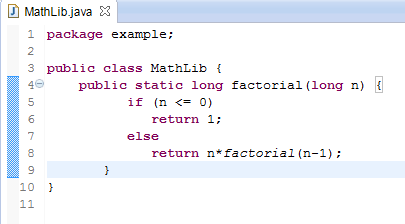
2. Create a class with the necessary methods with static declaration as shown below.
3. Once free of errors, click file > export and click 'JAR file' from the options shown
4. Select the project and click finish in the following screen
5. Now the jar file contains the the class files and is ready to be used in any project. To check out how it's working create a separate project and use the method as shown below. Right click > properties on the newly created project
6. Click 'Add External JARs ' and add the created jar in your project.
7. The added JAR appears as shown in the 'Referenced Libraries'
8. Now use it in your project by directly invoking the method name without instantiating the MathLib class as shown below
2. Create a class with the necessary methods with static declaration as shown below.
3. Once free of errors, click file > export and click 'JAR file' from the options shown
4. Select the project and click finish in the following screen
5. Now the jar file contains the the class files and is ready to be used in any project. To check out how it's working create a separate project and use the method as shown below. Right click > properties on the newly created project
6. Click 'Add External JARs ' and add the created jar in your project.
7. The added JAR appears as shown in the 'Referenced Libraries'
8. Now use it in your project by directly invoking the method name without instantiating the MathLib class as shown below
June 14, 2014
How to set-up Android Development environment on Windows
1. You need to install either JDK 1.6 or JDK 1.7 to compile Java code.
2. Setting Up environment variable:
After installing JDK, we need to set up the environment variable JAVA_HOME by entering the following commands in cmd. Use your JDK path wherever necessary.
3. Now download Android Developer Tools and extract the compressed zip to a convenient folder with at least 2 GB of space.
4. Start eclipse to confirm everything is configured properly.
June 13, 2014
Java Packages
In Java, import is simply used by the compiler to let you name your classes by their unqualified name, let's say String instead of java.lang.String. You don't really need to import java.lang.* because the compiler does it by default. However this mechanism is just to save you some typing. Types in Java are fully qualified class names, so a String is really a java.lang.String object when the code is run. Packages are intended to prevent name clashes and allow two classes to have the same simple name, instead of relying on the old C convention of prefixing types like this. java_lang_String. This is called namespacing.
Oracle includes 209 packages in the Java SE 7 API. You can either do a explicit import or a implicit import.
package com.george.cars;//0 or 1 package name only
public class Car {
public static final int BUGATTI = 1;
public static final int GOLF = 2;
public static final int JETTA = 2;
}
package com.george.vehicles;//0 or 1 package name only
import com.george.cars.Car;//here importing normally
public class Vehicle {
public Vehicle(int type) {
if (type == BUGATTI) {
System.out.println("Hello bugatti");
}
}
public static void main(String[] args) {
Vehicle v = new Vehicle(BUGATTI);
}
}
But the above code throws compilation errors because the static variable BUGATTI is not visible from the other package as static is not used. But the following is correct,
package com.george.vehicles;//0 or 1 package name only
//import com.george.cars.Car;//no need to import
public class Vehicle {
public Vehicle(int type) {
if (type == Car.BUGATTI) {
System.out.println("Hello bugatti");
}
}
public static void main(String[] args) {
Vehicle v = new Vehicle(Car.BUGATTI);
}
}
This is because, we have told the compiler that we use a variable BUGATTI from the car class. But as you can see, each time we have to repeat Car.BUGATTI which is annoying and involves more typing so alternative approach is shown below,
package com.george.vehicles;//0 or 1 package name only
import static com.george.cars.Car.BUGATTI;
public class Vehicle {
public Vehicle(int type) {
if (type == BUGATTI) {
System.out.println("Hello bugatti");
}
}
public static void main(String[] args) {
Vehicle v = new Vehicle(BUGATTI);
}
}
Also note that we can invoke nested static classes from another project like this import static george.logger.Timber.DebugTree; where DebugTree is a static class
Oracle includes 209 packages in the Java SE 7 API. You can either do a explicit import or a implicit import.
import java.util.ArrayList; - explicit
import java.util.*; - implicit
Since import is straight forward let me show you how to do import static. import static is useful whenever you are trying to access static data members of a class.
1. There are two classes called Car and Vehicle where we are trying to access static variable BUGATTI without instantiating an object of Car in main method of vehicle.
package com.george.cars;//0 or 1 package name only
public class Car {
public static final int BUGATTI = 1;
public static final int GOLF = 2;
public static final int JETTA = 2;
}
import com.george.cars.Car;//here importing normally
public class Vehicle {
public Vehicle(int type) {
if (type == BUGATTI) {
System.out.println("Hello bugatti");
}
}
public static void main(String[] args) {
Vehicle v = new Vehicle(BUGATTI);
}
}
But the above code throws compilation errors because the static variable BUGATTI is not visible from the other package as static is not used. But the following is correct,
package com.george.vehicles;//0 or 1 package name only
//import com.george.cars.Car;//no need to import
public class Vehicle {
public Vehicle(int type) {
if (type == Car.BUGATTI) {
System.out.println("Hello bugatti");
}
}
public static void main(String[] args) {
Vehicle v = new Vehicle(Car.BUGATTI);
}
}
package com.george.vehicles;//0 or 1 package name only
import static com.george.cars.Car.BUGATTI;
public class Vehicle {
public Vehicle(int type) {
if (type == BUGATTI) {
System.out.println("Hello bugatti");
}
}
public static void main(String[] args) {
Vehicle v = new Vehicle(BUGATTI);
}
}
Also note that we can invoke nested static classes from another project like this import static george.logger.Timber.DebugTree; where DebugTree is a static class
Widely used Java packages are,
1. java.util.*; - collections, date/time
2. java.awt.*; - to paint basic graphics & images
3. java.io.*; - data streams I/O
4. java.net.*; - networking
5. javax.swing.*; - lightweight components for GUI
The prefix java is commonly used for the core packages. The prefix javax is commonly used for packages that comprise Java standard extensions. javafx will replace javax.swing
Links: how-java-import-works
Note: Two packages are implicitly imported into a class. One is the java.lang package and the other is the default package in which we are working.
1. java.util.*; - collections, date/time
2. java.awt.*; - to paint basic graphics & images
3. java.io.*; - data streams I/O
4. java.net.*; - networking
5. javax.swing.*; - lightweight components for GUI
The prefix java is commonly used for the core packages. The prefix javax is commonly used for packages that comprise Java standard extensions. javafx will replace javax.swing
Links: how-java-import-works
Note: Two packages are implicitly imported into a class. One is the java.lang package and the other is the default package in which we are working.
Subscribe to:
Posts (Atom)

.png)


.png)